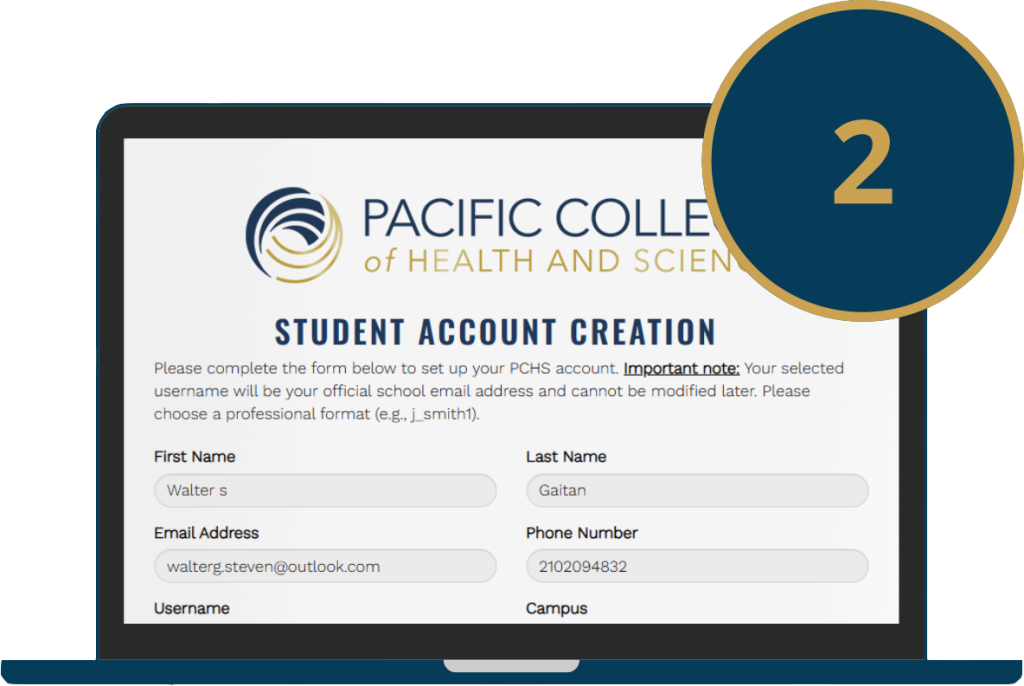
The email you used during enrollment
Desktop or Laptop. Windows or Mac
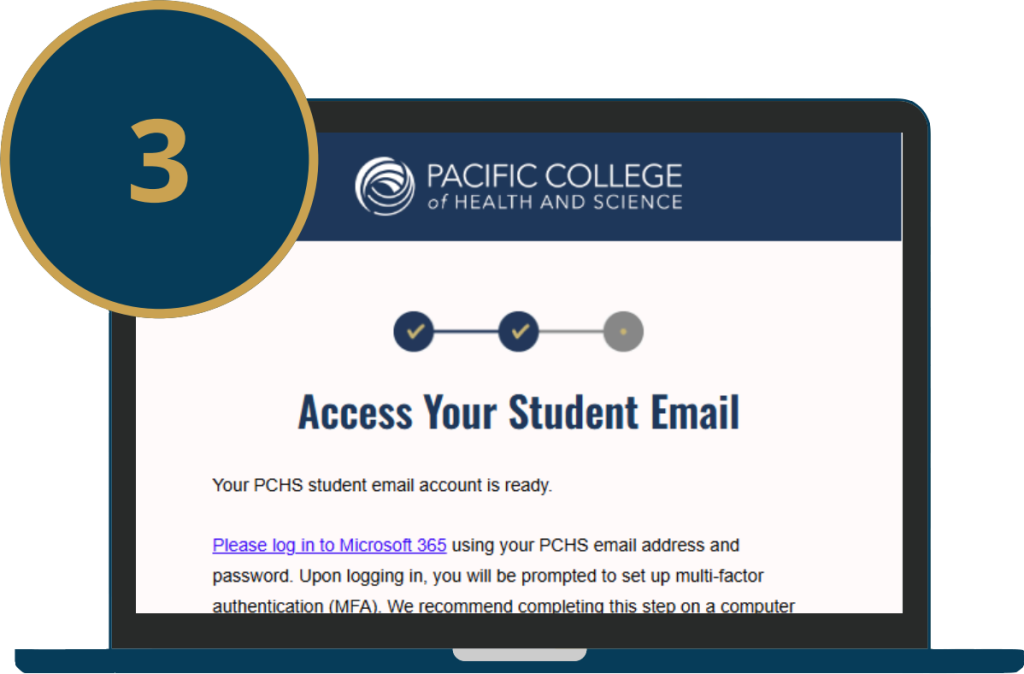
To set up your security verification (MFA)
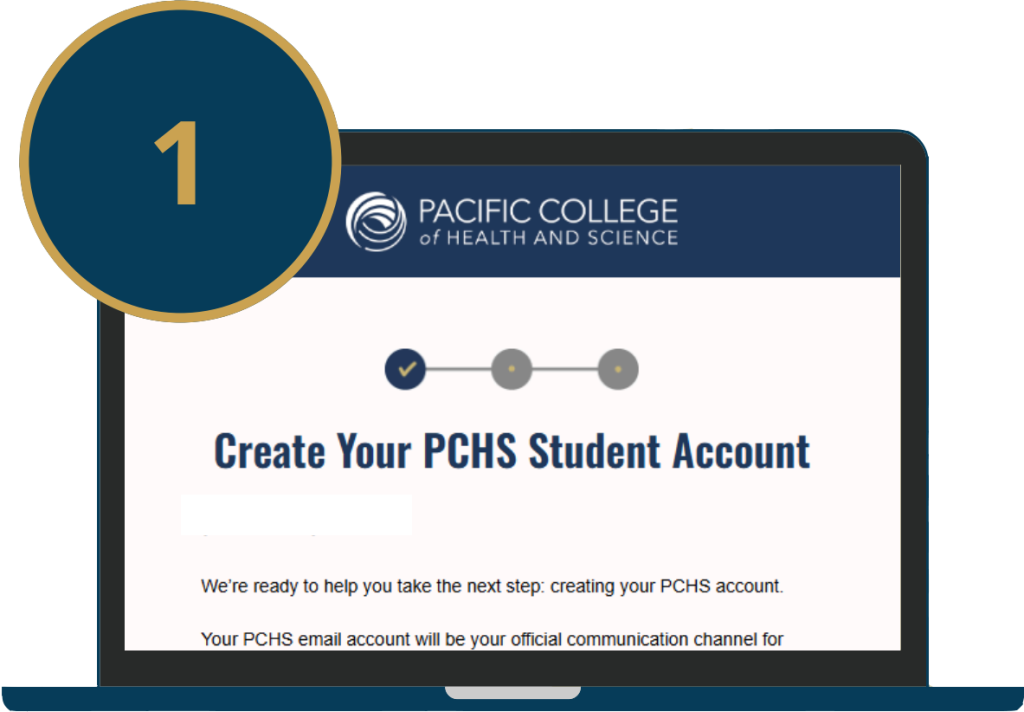
Note: Check your spam and junk folders.
Note: After submitting, wait 1–2 hours for setup to finish.
Note: MFA is required to access all PCHS platforms.MFA Help Guide: Click here
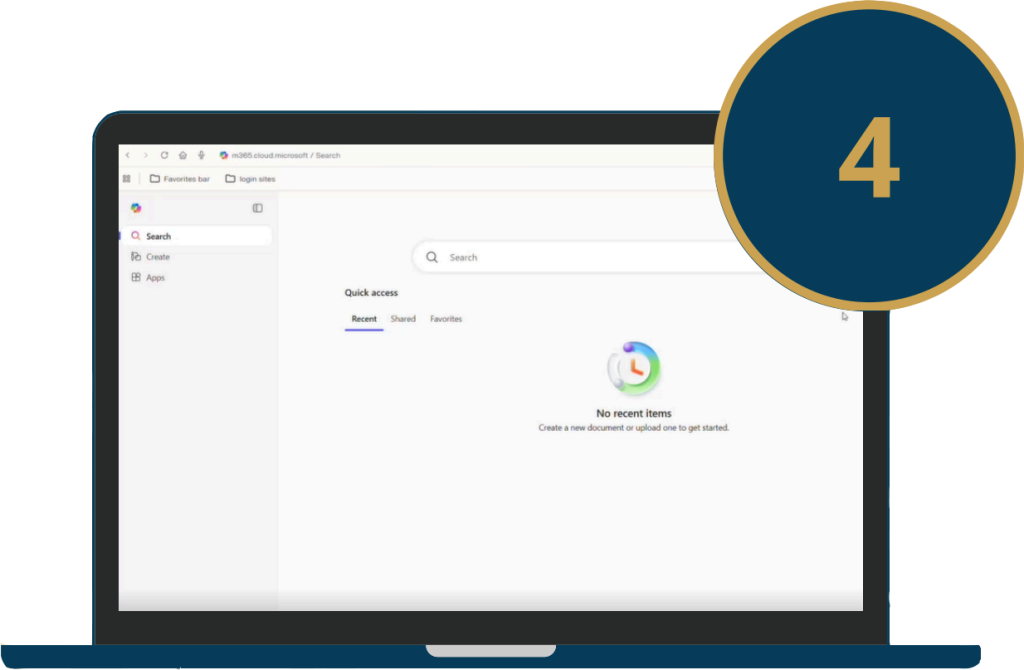
Note: This step confirms your PCHS student account setup is complete.
Note: Completion of this course is mandatory before the start of the term.
- Check your email's Spam/Junk Folder- If the email isn't found, please Contact the Technical team.
- Wait 1-2 Hours- Make sure you are using your PCHS student credentials
- Allow app permissions and try again- If MFA still fails, contact the Technical Team
Contact the Technical TeamNote: Complete setup before the term begins to avoid delays.

 Academic Calendar
 Blackboard
 One Drive
 School Email
 Course Eval
 Library
 Moodle
 Student Portal
 Forms
Forms Printing System
 Well Connect
 Catalog
 Store
Store Library
 Student Portal
 Printing System
 Well Connect
 Catalog